 Writers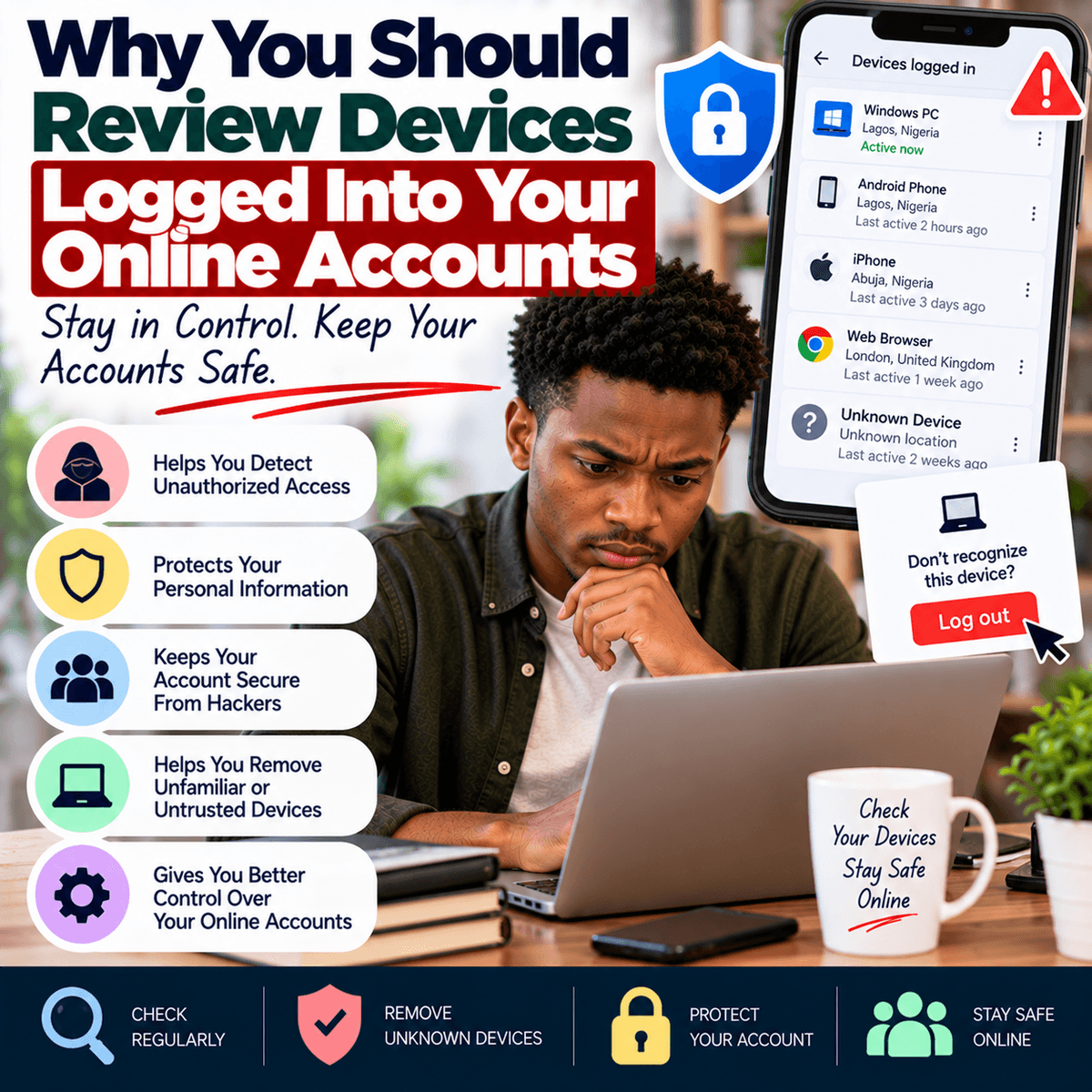
Most people use several online accounts every day without thinking much about how many devices have access to them. You may sign in to your email on your phone, use a laptop for work, access social media from a tablet or sign in to an account on another computer when your usual device is unavailable. Over time, the number of devices connected to your accounts can increase without you noticing. You may have sold an old phone, replaced a laptop, used a friend's computer, signed in at work or temporarily used a shared device and forgotten to sign out. This is why reviewing the devices logged into your important online accounts should become a regular digital security habit. Many major online services provide a security section where you can see devices or active sessions associated with your account. Depending on the service, this information may include the type of device, browser, approximate location and when the account was last accessed. Reviewing this list can help you identify devices that you no longer use or activity you do not recognise. An unfamiliar device does not always mean someone has gained access to your account. A browser update, a different internet connection or the way a service identifies your device may sometimes make familiar activity appear different. However, an unfamiliar sign-in should not simply be ignored. Check the available information and take action if you cannot explain it. Your password protects the entrance to an account, but reviewing active devices helps you check who may already be inside.
Old devices can create unnecessary security risks, particularly when they are sold, given away, lost or stolen without being properly removed from your accounts. Imagine replacing your phone and transferring your information to a new device. You may stop using the old phone but forget that your email, social media, cloud storage and other services are still signed in. If you give the phone to another person without properly signing out and removing your information, that person may be able to access accounts that remain active. A screen lock provides useful protection, but you should not depend on it as your only security measure when you no longer control the device. Before selling or giving away a phone, tablet or computer, back up the information you need, sign out of important accounts, remove the device from relevant account settings and follow the manufacturer's recommended process for securely erasing your personal information. If a device has already left your possession, check whether your account provider allows you to sign it out remotely. This can be particularly important for your main email account because email is often connected to password resets and account recovery for many other services. You should also check cloud storage, social media, financial services and other important accounts individually because signing out of one service does not necessarily sign you out of everything. Shared and public computers require even greater care. Avoid allowing a browser to save your password on a computer that does not belong to you, and make sure you properly sign out when finished. Simply closing the browser window may not end an active session.
Reviewing logged-in devices can also help you notice possible unauthorised access earlier. Someone who obtains your password may sign in without immediately changing anything. The person could remain connected to the account while you continue using it normally. Depending on the type of account and access available, this could expose private messages, documents, photographs or other information. This is why security notifications about new sign-ins should not be dismissed automatically. If you receive a notification that your account was accessed from a new device, first consider whether it was you. Perhaps you recently signed in from a new phone or browser. If you cannot recognise the activity, open the official application or type the service's known website address yourself rather than clicking a link in an unexpected message. Review recent security activity and connected devices. If you believe someone else has accessed the account, use the provider's security options to sign out unfamiliar sessions, change your password and follow any recommended account-recovery steps. Choose a strong password that you are not using on another important account. Reusing the same password creates an additional problem because a password exposed through one service may be tried on other services. Two-factor authentication can add another layer of protection by requiring an additional form of verification during sign-in, although you should still review devices and account activity. Also check whether important account details, such as your recovery email address or phone number, have been changed. An attacker who gains access may sometimes try to change recovery information to make it harder for the real owner to regain control.
It is also useful to understand the difference between devices, sessions and applications connected to an account. Depending on the service, the security page may show phones and computers that have signed in, browsers with active sessions and third-party applications that have been granted permission to access some account information. These are related but may need to be reviewed separately. For example, you might remove an old phone from your list of devices but still have an application that you authorised several years ago connected to your account. Some third-party services request access to information such as your basic profile, contacts, files or other data so that they can provide a particular function. This access may have made sense when you were actively using the service, but there is little reason to leave unnecessary connections active forever. Periodically check the applications and services connected to important accounts and remove access for those you no longer recognise, trust or use. Before removing something, make sure you understand what it is so that you do not accidentally disconnect a service you still need. The same principle applies to browser extensions and other software that interacts with your online activity. Keep the tools you actually use and remove unnecessary access where appropriate. Security is often stronger when fewer unnecessary connections exist. This does not require checking your accounts every day. A regular review, and an additional check after losing, replacing, selling or repairing a device, can help keep your account access under control.
A useful way to begin is with the accounts that would cause the greatest problems if someone else gained access. Your main email account is a good place to start because it may be connected to many other services. Open its security settings using the official app or website and look for sections relating to devices, sessions, recent sign-ins or security activity. Review each entry carefully. Keep the devices you recognise and still use, and sign out those you no longer need. Then repeat the process for other important services such as cloud storage, social media and financial accounts where the service provides these controls. While doing this, check that your recovery information is current, your passwords are strong and different, and additional sign-in protection is enabled where available. If you find an unfamiliar device, do not panic, but do not ignore it either. Check the details, secure the account if necessary and contact the service through its official support channel if you need assistance. Digital security is not only about creating a strong password once and assuming the account will remain protected forever. Devices change, people replace phones, applications receive permissions and accounts remain signed in for long periods. Regularly reviewing who and what has access gives you a clearer picture of your digital security. It takes only a small amount of time, but it can help you remove forgotten access, notice suspicious activity and reduce the number of unnecessary ways someone could reach your personal information.