 Writers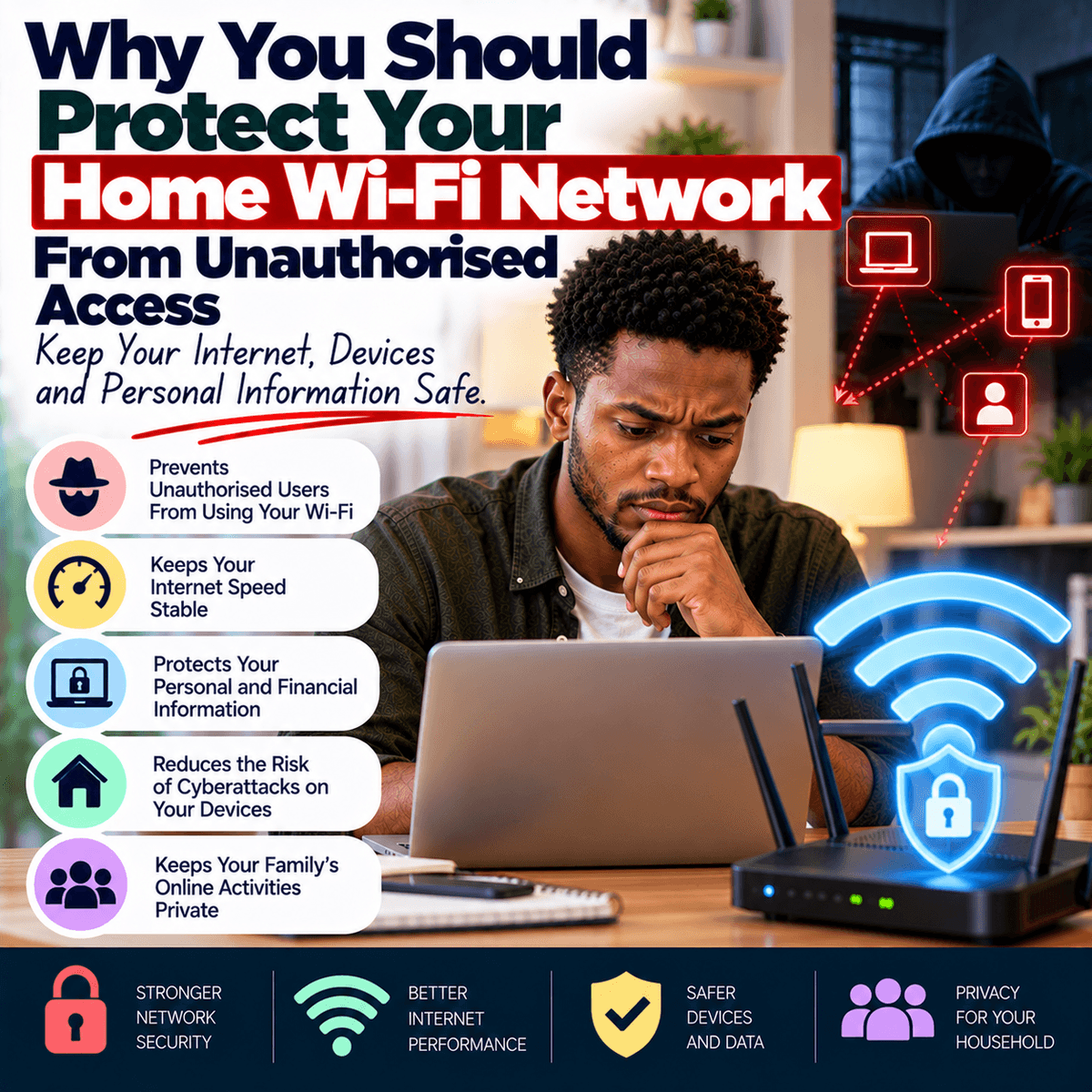
Internet access has become an important part of everyday life, and many households now depend on Wi-Fi networks for communication, education, entertainment, business and other activities. A single home network may connect several smartphones, laptops, smart televisions, security cameras, printers and other devices. This makes it convenient for family members to access the internet without purchasing separate connections for every device. However, many people pay little attention to the security of their home Wi-Fi network after the initial installation. Once the router is connected and the internet begins working, they may continue using the same settings for several years without reviewing them. Some people leave the original password unchanged, while others share their Wi-Fi details with visitors, neighbours and people they barely know. Although sharing internet access may seem harmless, an unsecured or poorly protected network can create unnecessary security risks. An unauthorised person who gains access to your Wi-Fi may use your internet connection without permission, consume your available data or interfere with connected devices. Depending on the security of your router and other devices, an intruder may also attempt to access information or services that should remain private. This does not mean that anyone who connects to your Wi-Fi can automatically read your messages, access your bank account or control your phone. Modern devices and online services often have additional security protections. However, allowing unknown people onto your network creates opportunities for problems that could otherwise be avoided. Home Wi-Fi security should therefore be treated as an important part of protecting your digital information. Just as you control who enters your home, you should also pay attention to who is allowed to connect to the network that supports many of your everyday activities.
One of the simplest ways to protect a home Wi-Fi network is to use a strong and unique password. Many people choose passwords that are easy to remember, such as their names, phone numbers, birthdays or simple combinations of numbers. Others continue using the default Wi-Fi password provided during installation without checking whether it is sufficiently secure. Although convenience matters, predictable passwords can make it easier for unauthorised users to attempt access. A better approach is to create a long password that is difficult to guess and is not used for another important account. A passphrase containing several unrelated words can be easier to remember than a short, complicated-looking password while still providing strong protection when created properly. Avoid sharing the password publicly or writing it where visitors and strangers can easily see it. You should also understand that your router may have two different types of passwords. The Wi-Fi password allows devices to connect to the wireless network, while the router's administrator password controls access to important settings. These passwords should be different because someone who obtains administrative access may be able to change network settings, view connected devices or interfere with the router's operation. Check whether the router still uses a default administrator password and change it where necessary. Another important setting is wireless encryption. Modern routers commonly support security options such as WPA2 and WPA3, which help protect wireless communication. WPA3 is generally preferable when supported by your router and devices, while WPA2 with appropriate security settings remains useful for many existing devices. Avoid outdated or insecure options such as WEP. If you are unsure which security method your router uses, check its settings or consult the instructions provided by the manufacturer or internet service provider. Strong passwords and appropriate encryption do not eliminate every possible risk, but they provide an important starting point for keeping unauthorised users away from your network.
Another useful security habit is to review the devices connected to your home Wi-Fi network. Over time, households often accumulate devices that are no longer used regularly. You may have replaced an old phone, purchased a new laptop, connected a visitor's device or allowed a technician to use your internet connection temporarily. Some routers provide a list of connected devices through their administration page or companion application. Reviewing this information can help you understand which devices are using your network. The list may show device names, identification details or other information that helps you recognise connected equipment. However, not every unfamiliar name indicates an intruder. Some devices appear under technical names, and privacy features may cause a familiar device to appear differently. Before assuming that someone has accessed your network, compare the list with the devices in your household. If you identify a connection that you cannot explain, investigate further and consider changing your Wi-Fi password. You may also need to reconnect your authorised devices afterward. A separate guest network can be useful when visitors regularly need internet access. Many modern routers allow you to create a guest network with its own password and settings. When properly configured, this can provide internet access without giving visitors the same level of access to your main home network. It can also reduce the need to share your primary Wi-Fi password. Some households may benefit from placing certain smart devices on a separate network, depending on the router's features and the devices involved. Smart televisions, security cameras, wireless speakers and other internet-connected products can have different security capabilities, so limiting unnecessary communication between devices may reduce potential risks. The important point is to understand what your router can do and use its available security features appropriately rather than assuming that every connected device requires unrestricted access to everything else.
Keeping your router updated is another important step that many people overlook. A router is a device that runs software, and like smartphones and computers, its software can contain errors or security weaknesses. Manufacturers may release updates to improve performance, correct problems or address known security vulnerabilities. If a router remains outdated for several years, it may continue operating with weaknesses that have already been corrected in newer software versions. Some routers install updates automatically, while others require the owner to check for updates through the router's settings or the manufacturer's official support channels. Review the update options available for your device and enable automatic security updates where supported and appropriate. Avoid downloading router software from random websites because installing incorrect or untrusted software may create additional problems. If your router is supplied and managed by your internet service provider, the provider may control some updates and settings. In that situation, contact the provider through its official customer support channel when you need assistance. You should also consider whether your router is still supported by its manufacturer. Very old devices may no longer receive security updates, making replacement worth considering when practical. Another setting to review is remote administration. Some routers allow their management pages to be accessed from outside the home network. This feature can be useful in certain situations, but most households do not need it enabled. If you are not using remote administration, disabling it can reduce unnecessary exposure. Similarly, features such as Wi-Fi Protected Setup, commonly called WPS, should be reviewed because some methods of using WPS have known security weaknesses. Disabling unnecessary features can reduce the number of ways someone might attempt to interfere with the router. Router security does not need to become a complicated daily activity, but occasional maintenance can help keep the network safer.
Protecting your home Wi-Fi network should become a regular part of managing your household technology rather than something you think about only after a problem occurs. Begin by identifying your router's manufacturer and model, then learn how to access its settings safely using the official instructions. Check that your wireless network uses a strong password and appropriate encryption. Make sure the administrator password is different from the Wi-Fi password, and review whether any unnecessary remote access features are enabled. Look at the list of connected devices and identify those that belong to your household. If you regularly share internet access with visitors, consider setting up a guest network instead of giving everyone the main password. Keep your router's software updated and replace unsupported equipment when necessary and affordable. You should also protect the devices connected to the network. A secure router cannot compensate for every problem caused by an outdated computer, a malicious application or a compromised online account. Keep phones, laptops and other devices updated, use appropriate passwords and avoid installing software from untrusted sources. If you suspect that someone has gained unauthorised access to your network, change the relevant passwords, review connected devices, update the router and seek technical assistance if the problem continues. Be careful about allowing unfamiliar individuals to change router settings without understanding what they are doing. Where professional assistance is necessary, use a trusted technician or your internet service provider's official support service. Home Wi-Fi has become essential for many activities, but convenience should not lead to neglecting basic security. A network that connects your personal devices, work materials, entertainment services and other digital tools deserves regular attention. By controlling access, using strong security settings and maintaining your equipment, you can reduce unnecessary risks and enjoy a more reliable and secure internet connection at home.